
Scratch Cards and Posters Artwork Guide
You can use any design software you like to create your scratch cards design, as long as it can save your finished artwork as a PDF. The Scratch Card Printing team can also accept other file types; see our FAQs for more details.
We recommend using Adobe Illustrator or InDesign, although Photoshop may also be useful if you’re planning a design which uses photography.
Set your artwork dimensions to match the size of the scratch cards or posters you’re looking to print, plus a bleed area of at least 3mm and a 300ppi resolution. (Alternatively, simply download our free ready-scaled scratch card templates and get stuck in!)
It’s a good idea to set up a safe zone, 5mm in from the edge of the card/poster size and 10mm for A4 size and upwards. This can help you avoid placing key text and graphics too close to the paper edge, where they may get trimmed off accidentally.
Make sure your design software is set to CMYK colour mode, rather than RGB mode.
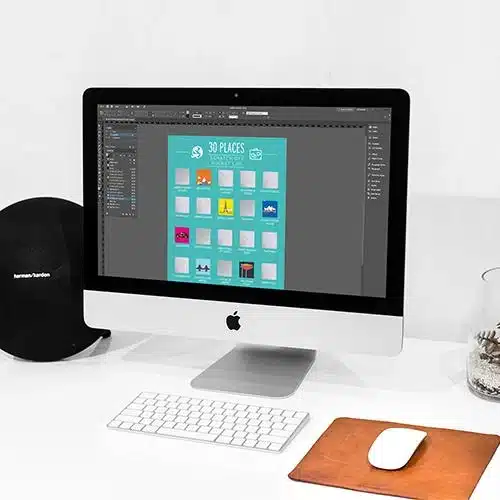
Design Your Heart Out
There’s no rules on what your scratch card design should look like; but there’s a few things to keep in mind to ensure the best print results.
What makes a winning scratch card design? See our marketing tips here.
Need a little inspiration? Take a look at our scratch card gallery.
Be sure to add your scratch-off panels (and any overprint artwork) on a separate layer to the rest of your artwork, and give the layer an appropriate name (eg ‘scratch panels’). Choose from gold scratch off panels, silver scratch off panels or black scratch off latex.
If you’re using photos or image files in your artwork, make sure each image’s resolution is at least 300ppi at the size you want. Be aware that scaling images up decreases the resolution, which can create pixelation problems in the final print.
Don’t forget to consider the bleed area and safe zone when designing your artwork. Make sure any colour blocks or images which you want to reach the edge of the paper are extended into the bleed area; and any important text or graphics are kept well outside the bleed area and within the safe zone.
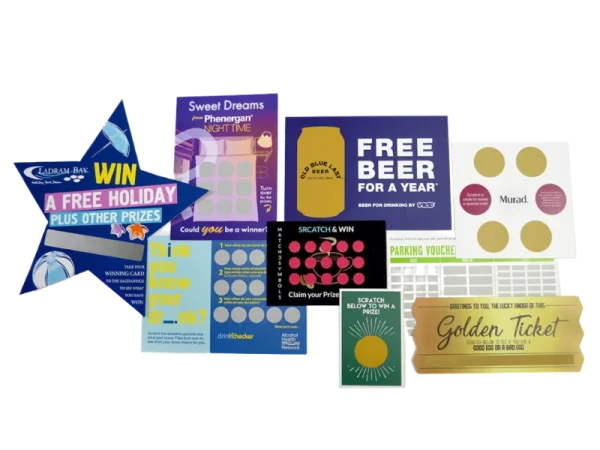
Take Care of the Extras
It’s a boring job, but if you’re planning a scratch card campaign, don’t forget to include all the required regulatory information.
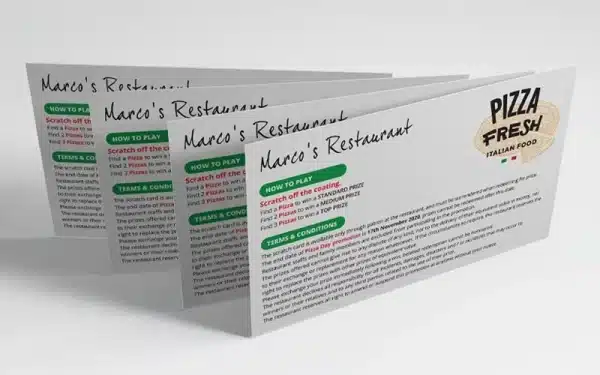
All standard scratchcard prints come with double-sided printing as standard – great for adding terms and conditions on the back. We recommend designing and saving the reverse design for your cards as a separate design file.
For more information on legal requirements for scratch card campaigns in the UK, visit the ASA/CAP and Gambling Commission websites.
Save Your Print-Ready Artwork
As mentioned earlier, it’s best to supply your artwork as high-res PDF files at 300ppi. Avoid saving your artwork as interactive PDFs, as these aren’t suitable for printing.
Be sure to add crop marks (aka printers marks) to your artwork. Most design software will enable you to do this when saving your files.
You can upload your artwork files at your shopping basket page, or you can email them directly to sales@scratchcardprinting.co.uk.
Don’t forget to include your variable data spreadsheet and variable image files if necessary!
Once we’ve received your artwork files, we’ll begin processing your order and you’ll receive a free PDF proof to review before we go to print – so any issues with your design can be caught early!
Artwork FAQs
Artwork is preferred in PDF file format, but our team can also work with InDesign, Illustrator and Photoshop source files, like JPEGs and TIFFs. Microsoft file formats such as Word, Publisher and PowerPoint are also accepted. Please don’t send us an interactive PDF, as these are designed to be used for other media types and won’t be suitable for printing.
It’s best to design your artwork in the same dimensions as your product, if possible. You can download templates for the most commonly available sizes on our templates page.
Be sure to include at least 3mm of bleed in your design. (For more information on bleed and safe zones, please see the below.)
All artwork is checked by our team before going to print, and we’ll contact you if there is a problem.
A cutter guide is a stroke outline around your print artwork which matches the shape of the finished product. If you’re looking to order custom-shaped die-cut printed products, your artwork will need to include a cutter guide.
The cutter guide is sent off to our die-cutters, who then assemble a cutter block with a bespoke-shaped blade which enables us to cut your printed products to the desired shape.
When creating the cutter guide outline in your artwork file, please use a 1pt stroke in a separate spot colour to your artwork and rename the layer to ‘cutter’. Use magenta, red or green for the stroke colour, as these will be clearly visible on the final PDF.
Our team also has an ever-growing library of ready-made cutter blocks in a range of versatile shapes. To find out which shapes are available, simply get in touch!
A cutter guide is a stroke outline around your print artwork which matches the shape of the finished product. If you’re looking to order custom-shaped die-cut printed products, your artwork will need to include a cutter guide.
The cutter guide is sent off to our die-cutters, who then assemble a cutter block with a bespoke-shaped blade which enables us to cut your printed products to the desired shape.
When creating the cutter guide outline in your artwork file, please use a 1pt stroke in a separate spot colour to your artwork and rename the layer to ‘cutter’. Use magenta, red or green for the stroke colour, as these will be clearly visible on the final PDF.
Our team also has an ever-growing library of ready-made cutter blocks in a range of versatile shapes. To find out which shapes are available, simply get in touch!
Variable data printing enables you to personalise each individual product in your order, by printing data entries ‘on top’ of your artwork.
To set up a variable data print run, you’ll need to supply a ‘base’ artwork file (featuring all the design elements which will be shared across the whole print run) and a spreadsheet file listing all the variable elements you want to print.
When creating your artwork file, be sure to indicate the areas where you’d like your variable elements to be printed. It’s best to put any placeholder elements on a separate layer to the rest of your artwork, and don’t forget to rename the layer with a clear title (e.g. ‘variable print elements’) to prevent it getting confused with the rest of your design.
Your spreadsheet file can be created in programs such as Microsoft Excel or Open Office. Place each variable word, phrase, number or image/graphic filename in a separate row. (If you’re looking to print variable images/graphics, same each one as a separate file and send them to us in a folder along with your artwork and spreadsheet files.)
If you’re looking to print multiple variable elements, create columns for each element and give them relevant names (e.g. ‘Names’, ‘Addresses’, ‘Barcodes’ etc.). Each row should contain all the elements to be printed on any given product in their appropriate columns.
Need help with your variable print order? Our team is always happy to assist – simply drop us a line!
If you’re looking to add finishing extras (such as foil stamping, Spot UV varnish, embossing/debossing etc.) or variable-printed elements to your design, you’ll likely want to indicate the areas where these elements will be located in the finished print.
Copy the relevant elements onto a separate layer in your design software and give the layer a relevant name or contact us directly with your requirements.
Call 02380 878030 or email us to speak to our sales team today.
Here’s a handy checklist for ensuring your artwork is ready to print. (If you’re unsure about any of these, contact us for help!)
- Check that all spelling and grammar is correct
- Check that you’re 100% happy with the layout, style and content of your design
- Check that you’ve saved your artwork in the correct file type. High resolution (press quality) 300dpi PDFs are preferred, but our team can work with other file types if necessary
- Check that all images used in your artwork are in 300dpi resolution at actual print size
- Check that all fonts are embedded, converted to outlines or supplied as font files with your artwork
- If you’re supplying your artwork as a project file tied to a particular design software (such as Adobe Indesign or Illustrator), check that all fonts and images are included and embedded
- To prevent inaccurate colour reproduction, check that your artwork is saved in CMYK mode and all images have been converted to CMYK
- Check that you’ve included at least 3mm of bleed in your design (see Bleed Area section above for more details)
- Check that any spot colours have been set up correctly
- If you’re designing a product with multiple pages and you’re submitting your artwork as a PDF, check that the artwork is arranged in single pages rather than side-by-side page spreads
- If you’re ordering custom-shaped products, check that you’ve included a cutter guide (see above for more details)
If you’re ordering online, you’ll be prompted with a section to upload your artwork before submitting your order. Alternatively, if you’re ordering via phone or our contact form, you can email your artwork to our friendly team. Check out our Contact Page for details.
If you’re having trouble uploading or emailing your artwork due to file size limitations, our team can also accept artwork via WeTransfer or FTP. Contact us for more details.
We carry out a free artwork check on every order, and we’ll send you a free digital PDF proof for you to inspect before going to print.
Please check the proof carefully before sending us your approval, as we cannot be held responsible for any errors that occur after the proof has been approved.
Don’t worry, these lines will not appear on your final print! These lines indicate the safe zone (as explained above). Make sure no important elements of your print appear outside the safe zone (such as text or icons) to ensure they won’t be cut off during trimming.
We’ve got you covered! We offer three different design services, ranging from basic edits to a full, complete, bespoke design. Take a look at our Artwork Design Services page for more information.